
Media: files that move between your tools, not through the chat
A photo from a job, a PDF from your accounts, an attachment from your inbox. Until now a file your AI fetched was a link that died within the hour, and sending it on meant copying a storage key by hand. Now every file lands in Media with a number, 158 connector tools take that number, and the bytes move from storage to the other platform without passing through the chat.

Ask Claude to grab the before photos from a ServiceM8 job and attach them to the Xero invoice. Until this week, that sentence had a hole in the middle of it.
The photos came back as links. The links expired within the hour. Attaching them meant the model lifting a storage key out of one tool’s result and pasting it into the next tool’s call, which worked right up until it didn’t. And if you dragged a photo into the chat yourself, nothing could reach it: a file attached to the chat belongs to the chat, and your connectors can’t see it.
Media closes the hole. It is a place in your workspace for the files your AI moves between tools. Every file gets a number. Any tool that takes a file takes that number instead. And the bytes go from storage straight to the other platform, inside the request, without passing through the chat at all.

What a media number is
When a tool hands back a file, Media keeps it and gives it a number: media 12, media 13, media 14. That number is what your AI works with from then on.
Ask for an attachment from Outlook or Gmail, a photo from a ServiceM8 job, a file from Xero, and it comes back as a number with its name and size. Pass that number to any tool that takes a file: send it from Gmail or Outlook, attach it to a Xero invoice, add it to a ServiceM8 job, save it to SharePoint, Google Drive or Dropbox. 158 tools across the connectors take a media number now, every one that took a file before, and seven more that fetch from a web address accept a number in place of the address.
| Before | With Media | |
|---|---|---|
| A file a tool hands back | A link, dead within the hour | A media number that stays |
| Sending it to another tool | Copy a storage key by hand | Pass the number |
| What crosses the chat | The link, the key, sometimes the bytes | The number |
| A file you drop into the chat | Unreachable by your connectors | Dropped into Media, numbered, usable |
| Finding it next week | Ask the inbox again | It is in Media |
The number is small on purpose. A file in a result is its number, name, type, size and whether it is pinned, about a dozen tokens. The bytes are somewhere else entirely, and the model never needs them.
Your AI can look at a file
Numbers are enough for moving a file. They are not enough for a question like “what does this quote actually say”.
So your AI can look. Ask it to read a photo, a scanned quote or a CSV in Media and it sees the file itself: images are shown to it resized, PDFs are handed over whole, and text files are quoted. Ask it to look through a set of photos and name them properly, and it reads the lot and renames them in one call rather than one file at a time. Video and audio are not viewable, so for those it gives you a link instead.
Choosing files from the chat
Models are good at acting on a file and bad at knowing which one you meant. “The photos from Tuesday” is clear to you and a guess for it.
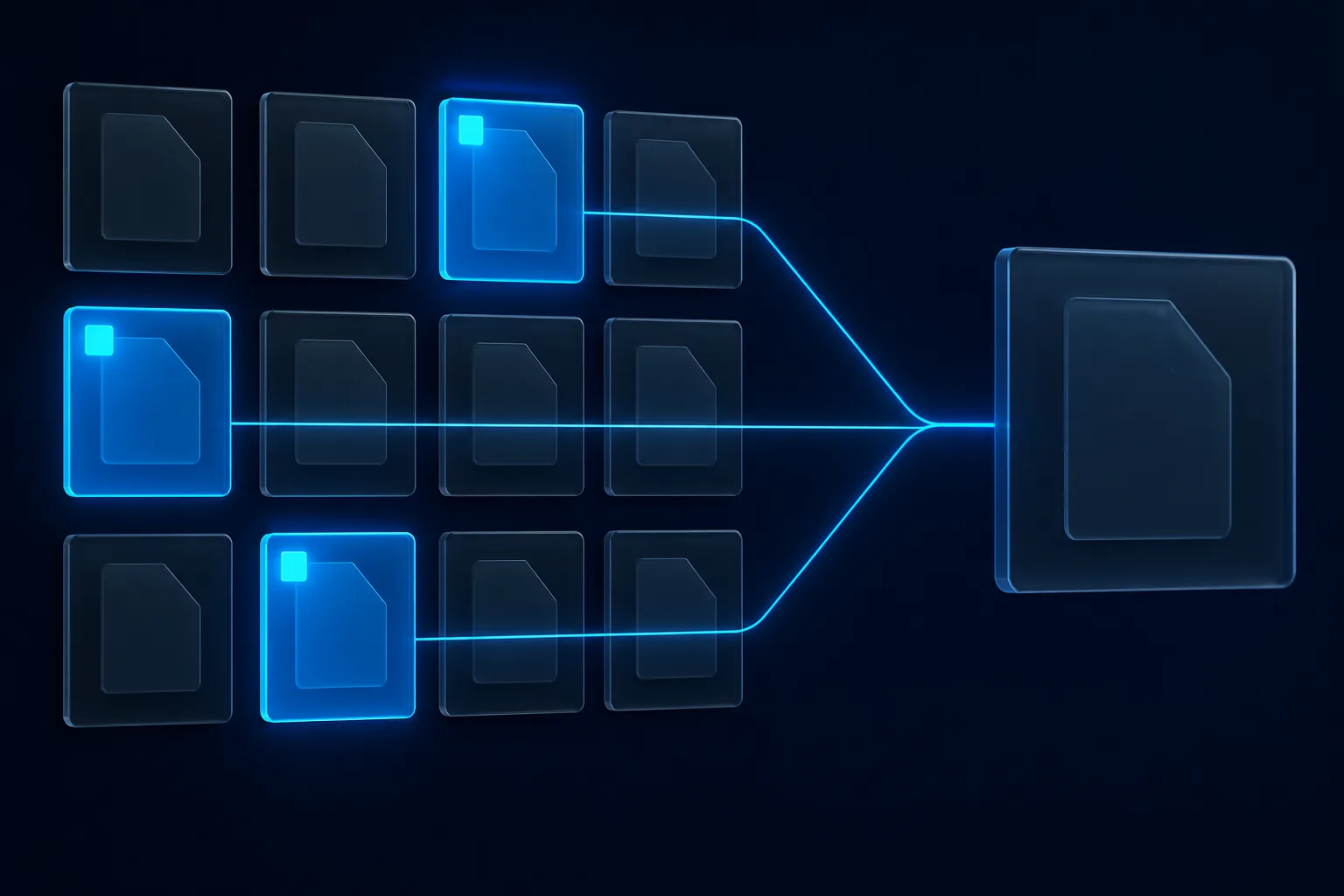
Ask for the files in Media and, on claude.ai, a panel appears beside the answer with every file as a tile: a thumbnail for photos, our own file-type art for everything else, the media number under each. Tick the ones you mean and press Use these. Your AI works with exactly those files, whether that is reading them, attaching them to an email or adding them to a job. Press Download instead and the ticked files open as one page you can save from.
Getting files in
Three ways, and they all end the same: a media number.
- Ask a tool for a file. It lands in Media with a number, every time, and the result says so.
- Drop it in the chat. Ask your AI for an upload and a drop zone opens right in the chat on claude.ai. Each file becomes a media number the moment it completes, and pressing Done tells your AI what arrived. Files attached to the chat itself can’t reach FloConnector, which is why the zone exists.
- Send it from your phone. The same ask hands you a link that opens the upload page, so photos go straight from the camera roll. Each one is numbered as it lands.
Images, PDFs, Office documents, CSV, text and video are accepted. A file that isn’t what its name says it is gets refused. Solo takes files up to 10 MB; Pro and Scale take up to 250 MB.
Sending files out
A media number is for tools. People need a link.
One file gets a link that lasts ten minutes, an hour, a day, a week, or for as long as you like. The short three are for everyone who can use the file, which is how a member shows a customer a photo. A week or longer puts a company file on the open internet, so it needs Pro or Scale and the Links permission in Settings → Roles. Deleting the file ends every link to it.
A set of files gets a bundle. Ask your AI to bundle them, or select several on the Media page and press Download, and you get one address that lasts 24 hours. It opens as a page listing the files, with a single zip of them all and each file on its own, so it works on a phone and can be forwarded to someone who is not in your workspace. Up to 50 files and 1 GB a bundle.

The Media page
Everything the workspace holds, in the dashboard under Media. It is a file manager, deliberately shaped like one you already know: folders, previews, search across folders, tiles or a list with a type column, 25 to 100 files a page, sorted by when they arrived, by size or by name.
Every file shows who added it and from which tool. Pin a file so it is never cleared to make room, open it to everyone in the workspace or keep it to yourself, rename it, move it, delete it. Select several and the bar at the top pins, shares, links, moves or deletes the lot. The storage meter sits beside the list.
Settings → Media holds the one decision the pool needs. When it is full, either the oldest unpinned files make room for the new one and the result says what went, or everything stops until someone makes space. Make room is the default. Pinned files are never touched either way.
Who can do what
Media comes with eight permissions in Settings → Roles, and the defaults follow how people actually work. Members can upload, see and use their own files and the ones opened to the workspace, rename or delete their own, and make links that last up to a day, because sending a photo to a job is ordinary work. Pinning, opening a file to everyone, links of a week or longer, seeing everyone’s files and changing Settings → Media are admin by default, because each of those affects more than one person’s files or space.
A file a tool creates belongs to whoever ran the tool, with their permissions. If someone may call the ServiceM8 download, the photo it produces is theirs. Every Media tool acts as the person asking, checked on every call, the same way the rest of the FloConnector connector does.
What it costs
Nothing per call. Media tools work on FloConnector’s own storage, not a vendor’s API, so they are included, like skills and tables. A vendor call inside a transfer, the Xero upload itself, is metered as usual.
| Plan | Pool per workspace | Largest file | Links |
|---|---|---|---|
| Solo | 2 GB | 10 MB | Up to 24 hours |
| Pro | 25 GB | 250 MB | All five, to never |
| Scale | 100 GB | 250 MB | All five, to never |
| Every plan | Pinned files never cleared | $0 per Media call | Bundles, 24 hours |
Moving to a smaller plan deletes nothing on the spot. The pool rule applies the next time a file arrives, and pinned files are still never touched.
Files are stored encrypted, in the Oceania region, and removed from storage when you delete them. The privacy policy and the data processing addendum both describe Media now.
What it deliberately is not
Media is not a drive, and it is not trying to be one. It does not mirror your Google Drive or SharePoint, because those tools already exist and the connectors already reach them. It holds the files that pass through your AI’s hands, numbered, for as long as they are useful, and it moves them on when you say so.
It is also not a file host by default. Nothing you put in Media has a public address until you make a link, and the short lifetimes are the ones everyone gets.
It is in beta
Media shipped on 8 November 2026 in release 0.42.0, along with eight tools on the FloConnector connector: flc_media_list, flc_media_get, flc_media_view, flc_media_update, flc_media_delete, flc_media_upload, flc_media_link and flc_media_bundle. Every transfer in this post was run live, through the MCP, against real ServiceM8, Xero, Gmail and Outlook accounts, and the files came back byte for byte.
Beta means we are still watching how it behaves across real workspaces. Your files are handled as everything else in FloConnector is: encrypted at rest, deleted when you delete them, never shown to the model unless you ask it to look.
Switch on the FloConnector connector for a profile, ask for a file from any tool you have connected, and it is in Media. The Media docs have the rest, and the feature page has the short version.
Keep reading
More from the blog
Google Business Profile + AI: the posts, photos and replies get done
I've run Google Business Profile posting for local businesses by hand for years, and it is one of the highest-leverage jobs in local marketing that nobody has time for. Google Business Profile is now live on FloConnector: 46 tools on each connection, every connection locked to one business, and your job photos go from Media to the profile without touching your camera roll.
Employment Hero + AI: 189 tools, and the HR admin stops being clicks
Employment Hero is live on FloConnector on a connector we build and maintain ourselves: 189 tools across people, leave, rosters, timesheets, compliance, forms, goals, reviews and assets. Your AI can approve the leave, fix the roster and chase the policy sign-offs, and the three writes that change someone's job or pay start switched off.
AroFlo API v2: 147 tools, and the AI can finally write the quote
AroFlo opened its new API to every site, so we built a second AroFlo connector on it: 147 tools, one pasted token, and the writes the old API never allowed. Quotes, invoices, credit notes, payments, labour on a job, and documents straight from a OneDrive or Dropbox link.