
ServiceM8 add-ons, built from a chat
ServiceM8's own AI add-on kit needs a computer, Node and a terminal. The ServiceM8 Add-on Builder needs a chat. Describe the add-on in Claude or ChatGPT, click through it on a sample job before it exists, point at what to change, and put it live in ServiceM8 when you say so. Free on every plan.

Every ServiceM8 account has a job it does by hand that ServiceM8 doesn’t do for it. A diary line nobody remembers to write when a job changes status. A copy of last month’s job for a repeat customer. A photo of a staff member’s payslip that shouldn’t sit in the job diary for every tech to scroll past.
ServiceM8 add-ons are how you make ServiceM8 do that one thing. They’re small programs ServiceM8 hosts and runs for you: a button on the job, a page under Account, or something that runs by itself when a job changes. Until now, building one meant being a developer, or paying one.
ServiceM8’s own answer is a good one. Its Addon Kit lets a coding agent such as Claude Code or Codex build a private add-on for you. It assumes a computer with Node installed, a terminal, and an AI agent you’ve allowed to run commands on that computer. Most people who run a ServiceM8 account have none of those, and shouldn’t need them.
So we built the ServiceM8 Add-on Builder. It’s a FloConnector connector that lets the AI you already use write, preview, deploy, watch and switch off private ServiceM8 add-ons, from Claude or ChatGPT, in a browser or on your phone. Here’s one we built from a chat:
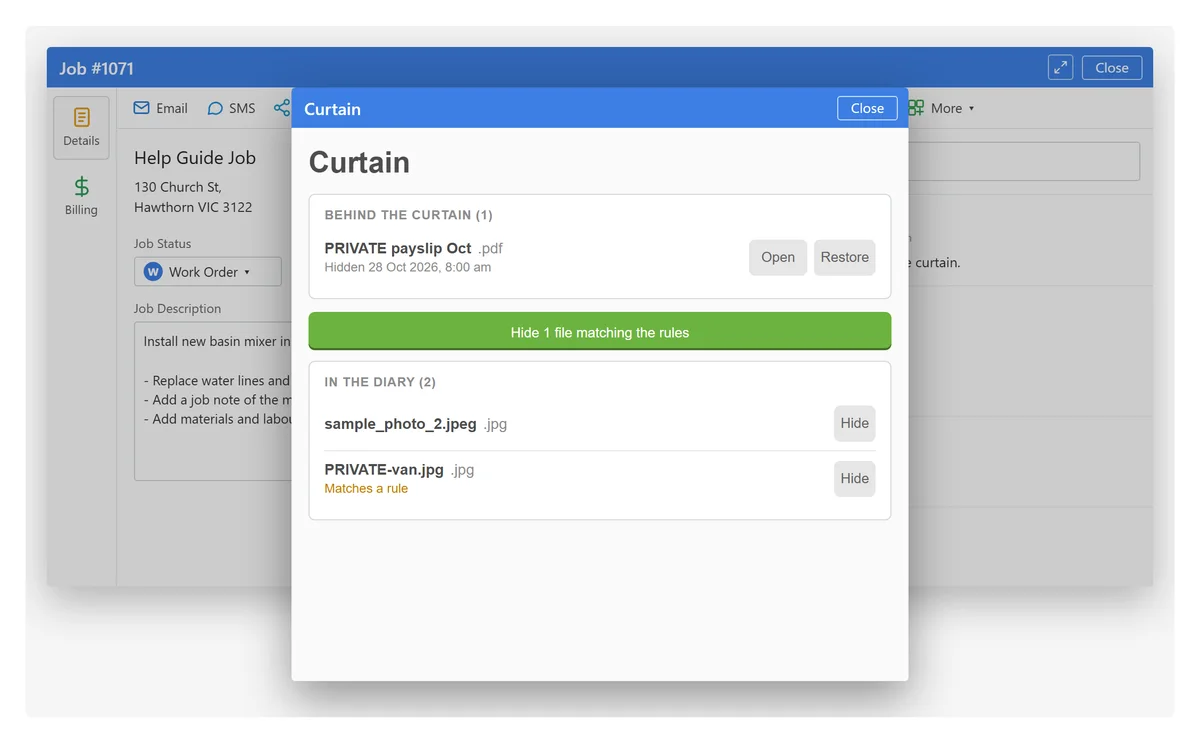
The rest of this post is how that works, what’s in the box, and what you’d have to learn to do it yourself.
What is a ServiceM8 add-on?
An add-on is one JavaScript file plus a manifest that says where it appears. ServiceM8 hosts it on its own servers, runs it on Node 24 when someone clicks it or something changes, and hands it a fresh 15-minute token for exactly the permissions its manifest asks for. There’s no server for you to keep running and nothing to install.
It can show up in four places, and one add-on can use several:
| Where | What your team sees | Good for |
|---|---|---|
| A button on the job | On the web, an entry under More, Addons, which opens a popup over the job. In the app, an entry in the job’s actions, full screen. | Anything about one job: a summary, a checklist, a quick quote, a copy of the job |
| A button on the client | The same, on the client record | Anything about one customer |
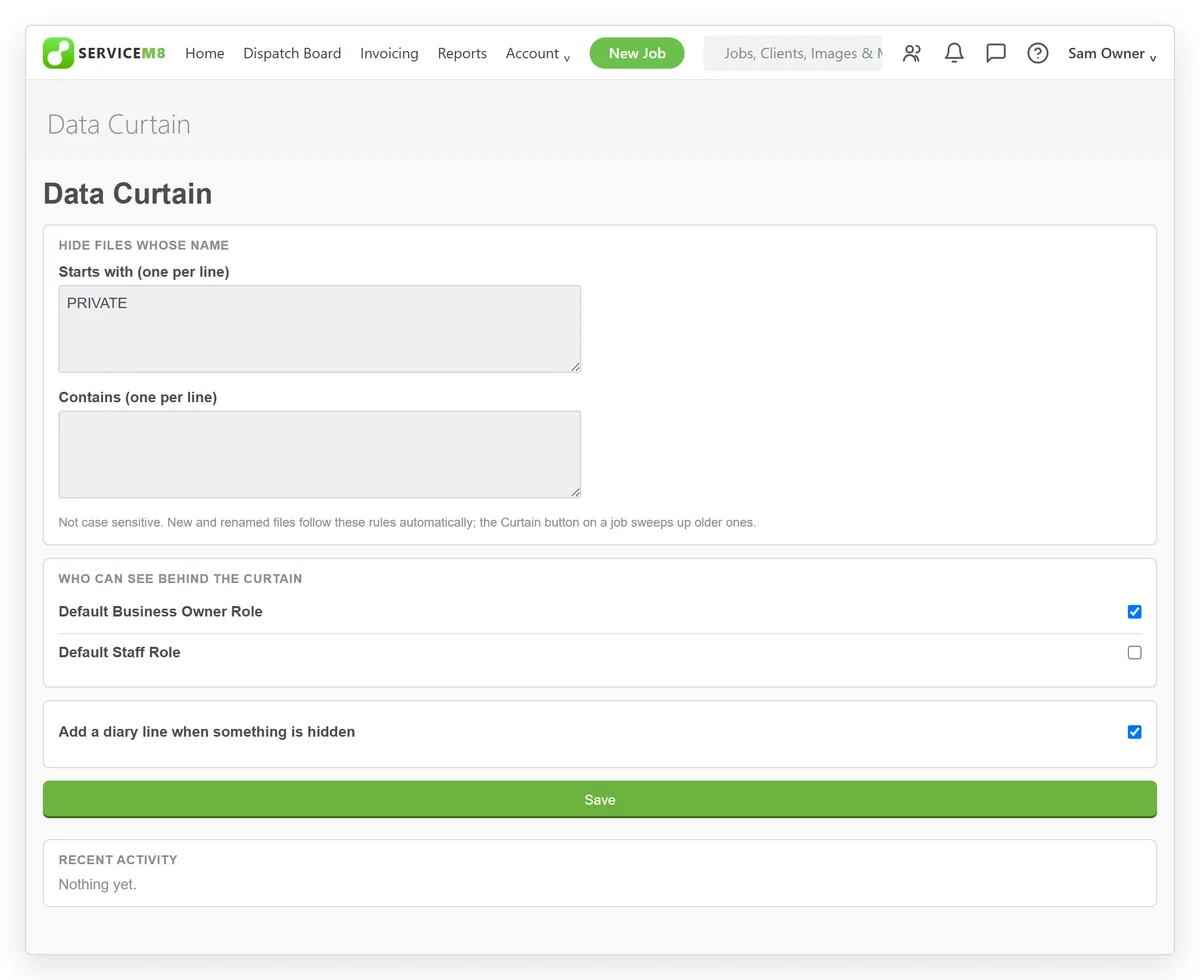
| An Add-ons page | A tile under Account, Addons that opens a full page | Reports, dashboards, settings, anything not tied to one job |
| Automatic | Nothing to click. It runs about 17 seconds after something it watches changes | Diary notes, notifications, tidying up |
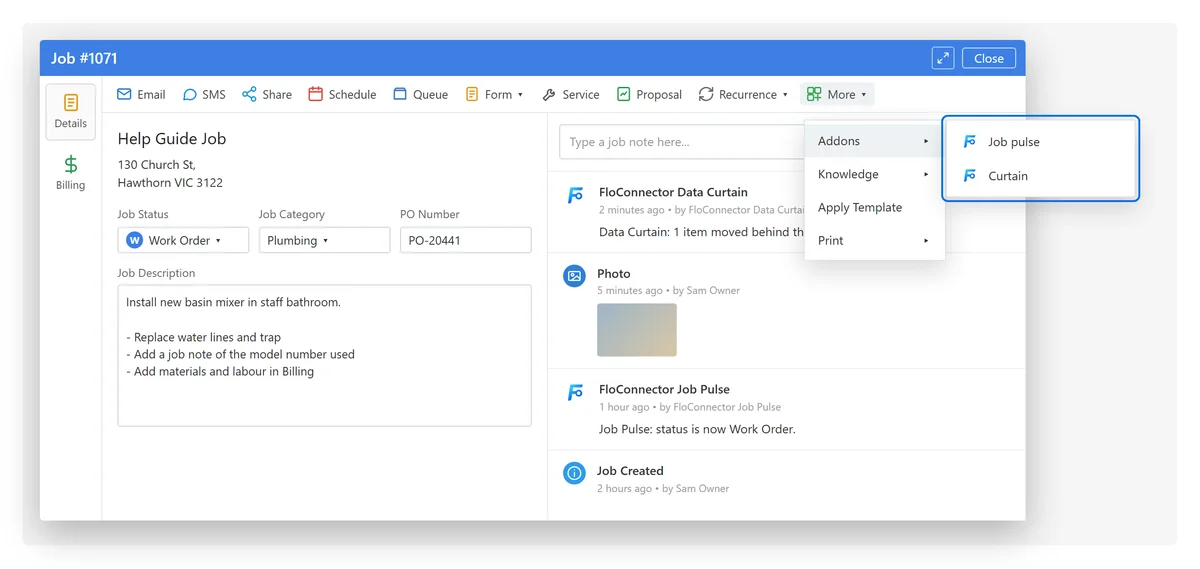
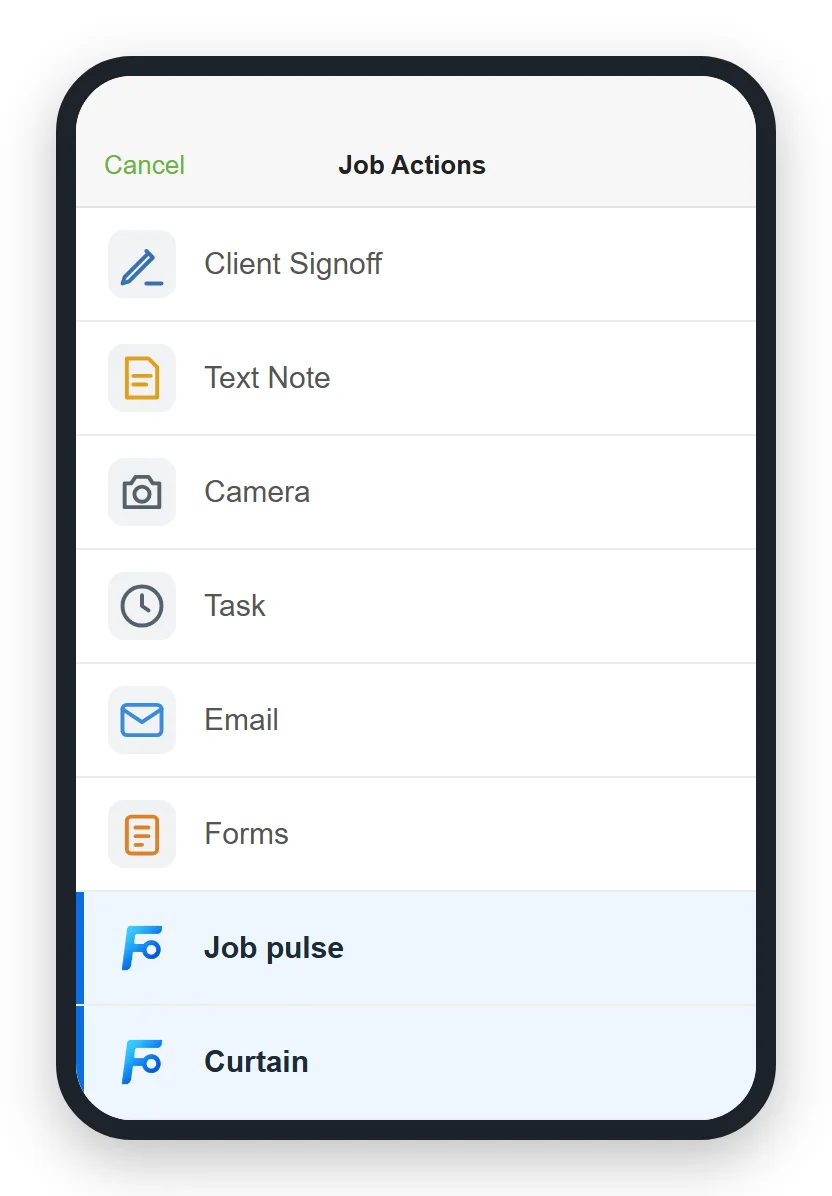
On a phone the same buttons sit in the job’s actions, next to ServiceM8’s own, and open full screen. That’s where your techs meet them.
Pages that aren’t about one job live under Account, Addons, a tile each. Click one and it opens at full width:
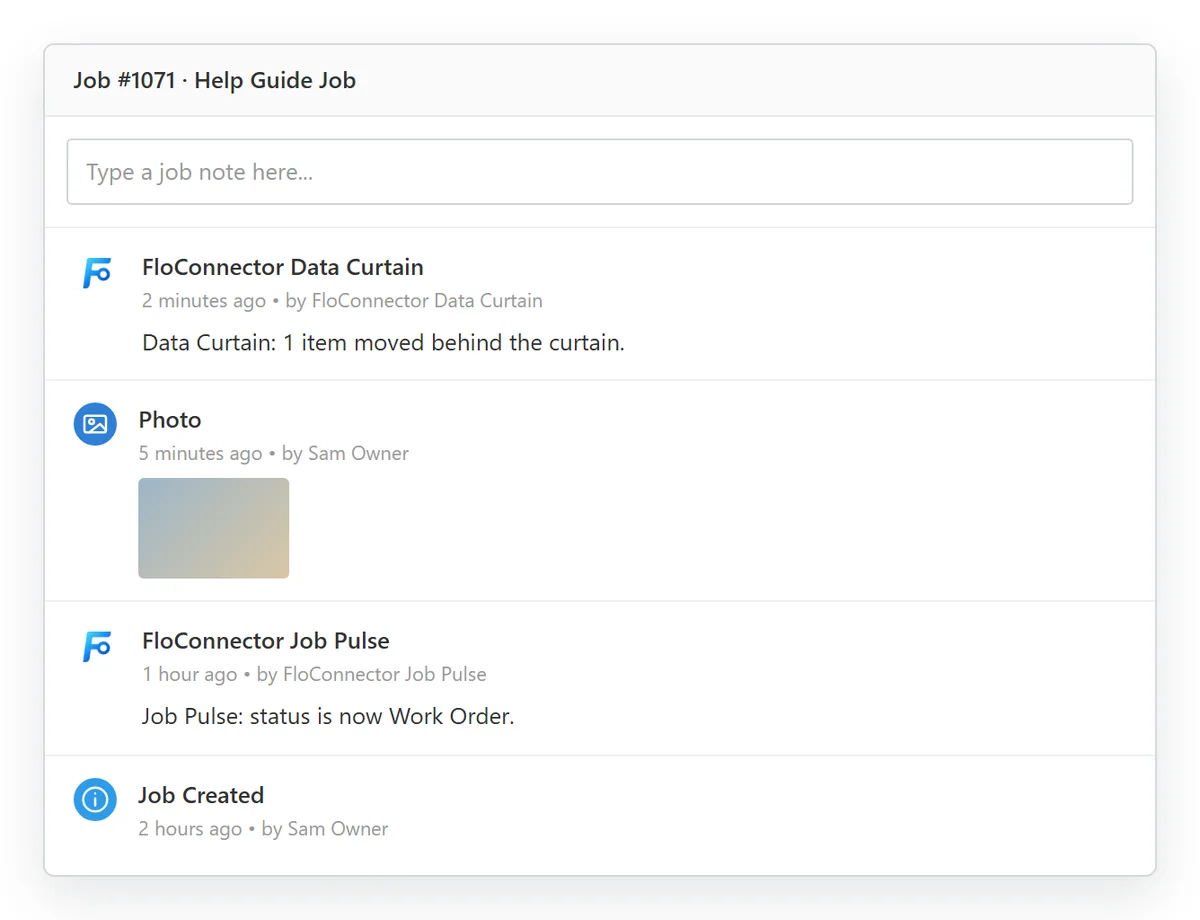
An add-on can also write to the job diary under its own name and icon, which is how an automatic one tells you it ran, and it can send staff a push notification.
Build a ServiceM8 add-on from a chat
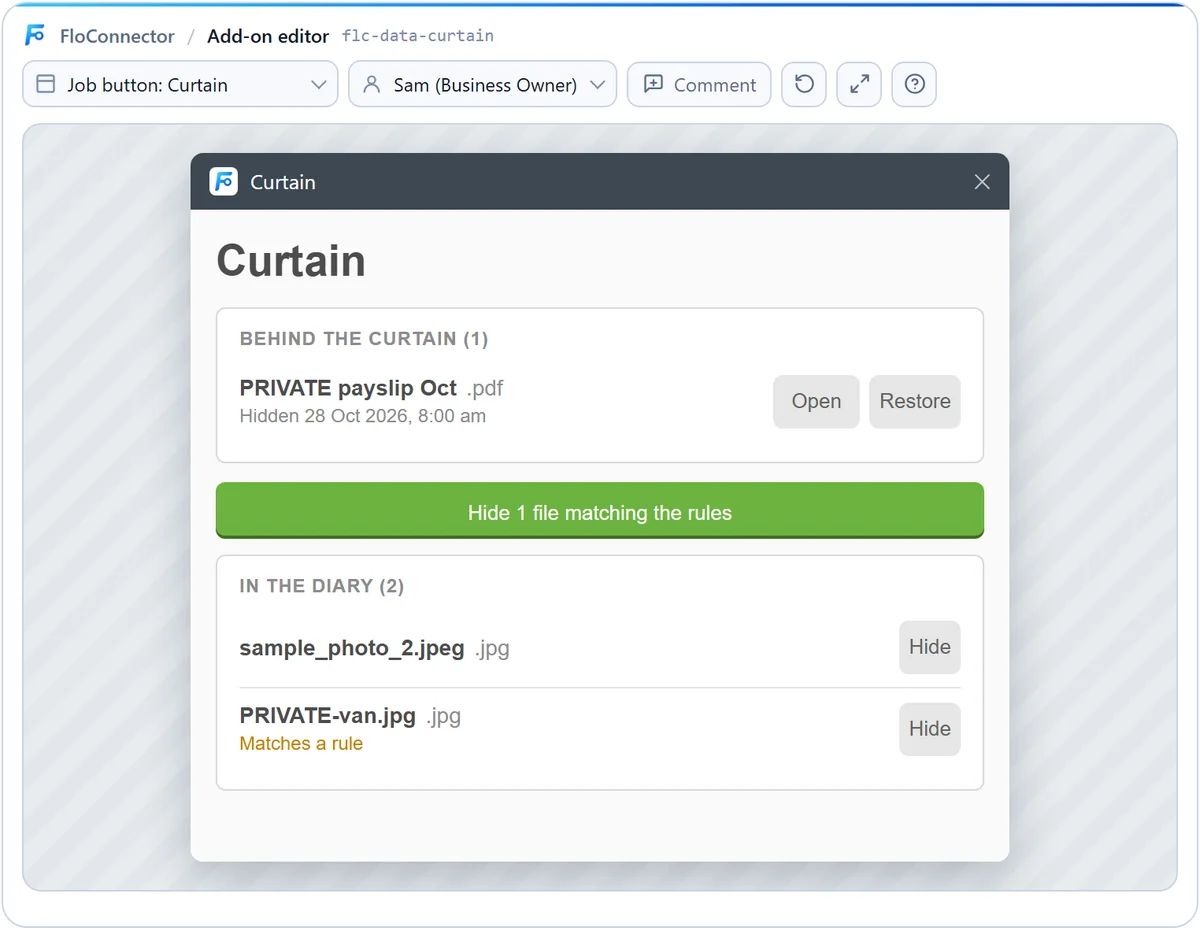
Here’s the whole loop, using Data Curtain. We built it on a fresh ServiceM8 account over the real connection, then used it for real, including signed in as a staff member who shouldn’t see what it hides.
1. Describe it
Say what it does, where it lives and who uses it:
Hide any job file whose name starts with PRIVATE from the job diary. Add a Curtain button on the job where business owners can see and restore hidden files, and an Add-ons menu page where they set the rules.If you leave out where it should live, your AI asks before it writes a line. That’s deliberate. Placement is the decision that shapes everything else, so it’s the first thing the Builder’s guide tells your AI to settle.
2. Your AI reads the guide, then writes it
The Builder ships with a guide your AI reads before it writes anything: how add-ons work, the rules, worked examples, and ServiceM8’s whole API reference with our corrections in it. It’s around 460 KB, so nothing reads it in one go. Your AI pulls one topic or one API resource at a time, usually three to five of them at a few thousand tokens each.
Then it writes the add-on and saves it as a draft. Nothing reaches ServiceM8 yet.
3. FloConnector checks it and shows you a review
Every draft is checked before it’s saved. It’s refused, with every reason listed, if:
- the manifest isn’t valid against ServiceM8’s schema, or a button isn’t wired to anything;
- it asks for a permission that isn’t on our list;
- the code doesn’t compile as a single file, or loads a package;
- an icon isn’t a public
https://image.
The code is compiled to check it, never run. A draft is saved with a warning if its code calls a part of ServiceM8’s API its permissions don’t cover, or would write something sensitive to its logs. Your AI sees every reason and fixes it.
Then you get a review in plain words. For a smaller add-on, Job Pulse, it reads:
Where it appears:
- Job button "Job pulse" (web)
- Job button "Job pulse" (app, under More)
- Runs automatically when a job's status changes

What it will be able to do in ServiceM8, on its own, every time it runs:
- read jobs
- read clients
- add job diary entries
Read the second list carefully. Whatever an add-on is allowed to do, it can do every time it runs, for as long as it’s deployed, without anyone in the chat.
4. Click through it before it exists
In Claude and ChatGPT, the draft opens in an editor right inside the chat: the real add-on, running on a sample job, in ServiceM8’s own styling. Click its buttons and they work. Hide a file and it moves. Nothing reaches your account.
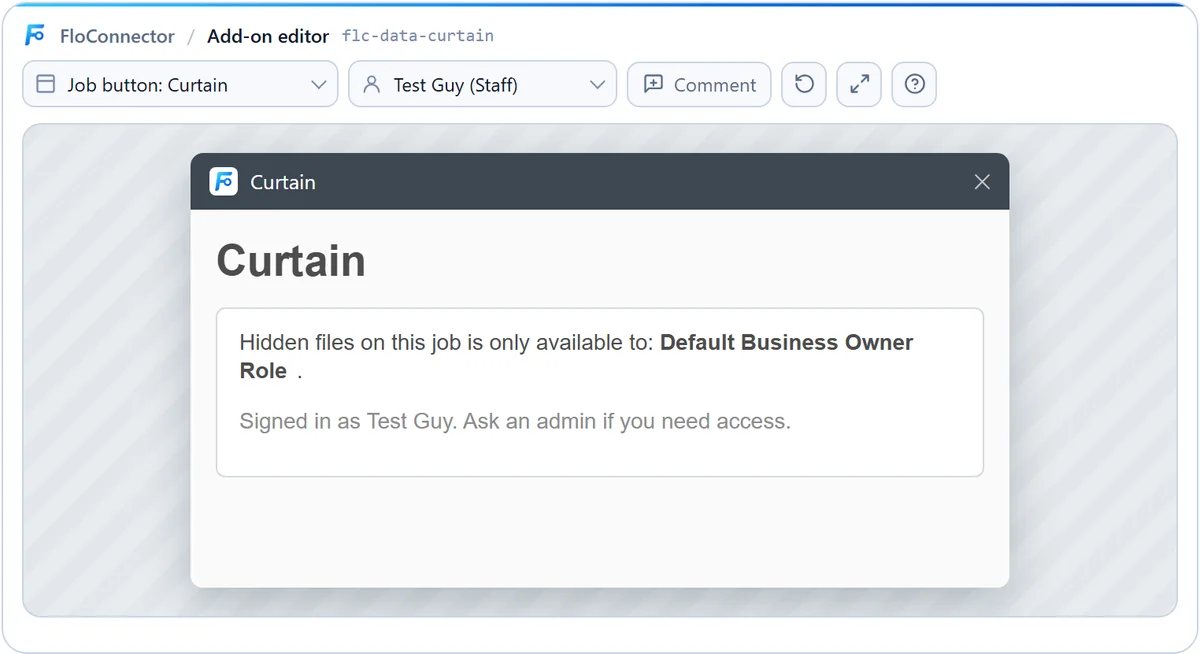
Switch Viewing as to a staff member to check what someone without owner access sees. An add-on that checks roles behaves exactly as it will for that person:
5. Point at what to change
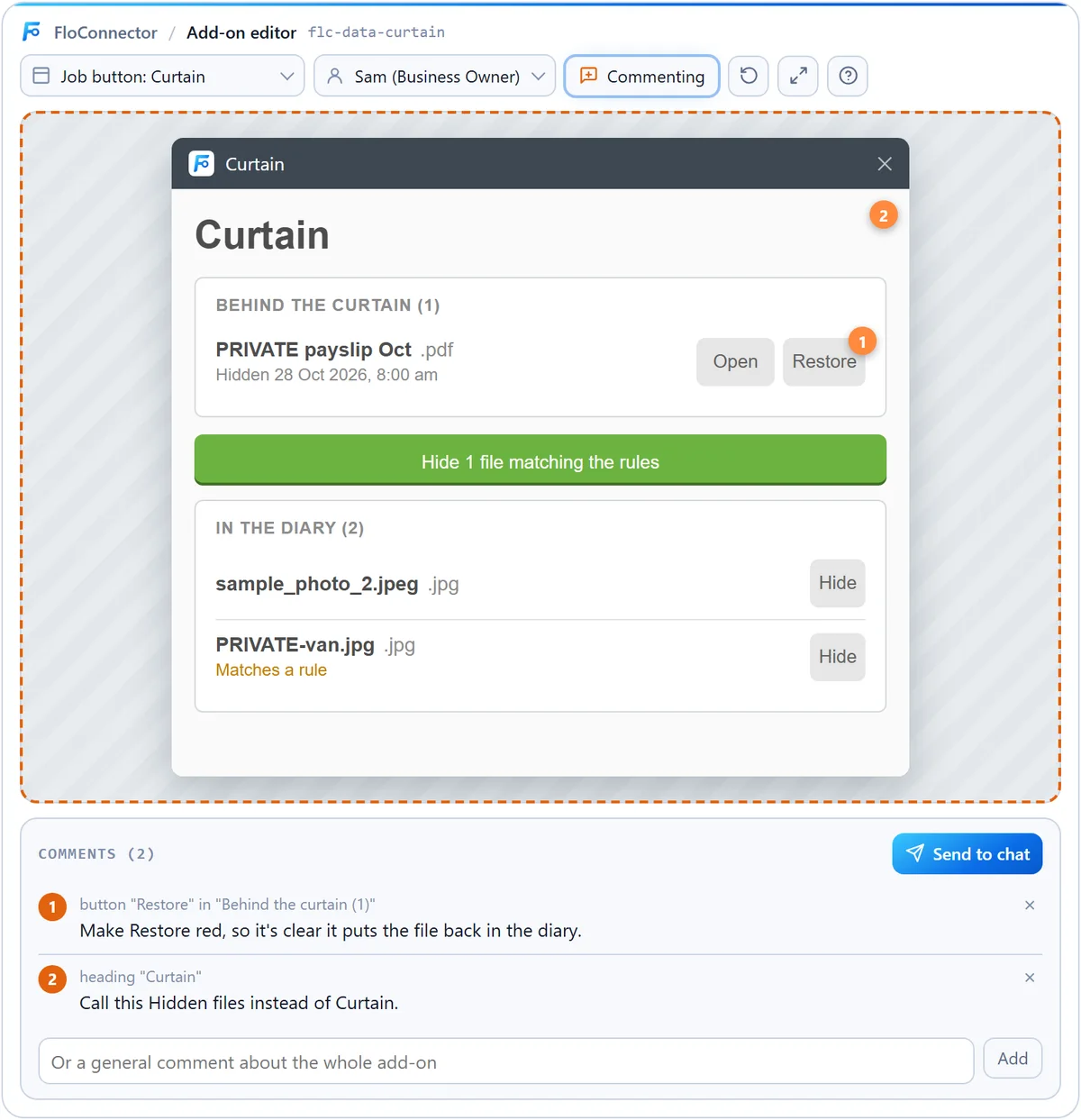
Turn on Comment, click the part you want changed, and say what you want. Comments collect as numbered pins under the add-on, and you can add one about the add-on as a whole. Send to chat gives them to your AI as one message. It changes the draft and opens the editor again for you to check.
6. Deploy
When it does what you want, tell your AI to deploy it. It only does that after you’ve seen the review and said yes. ServiceM8 takes 20 to 40 seconds to accept a deploy, and a new add-on’s buttons can take a few minutes more to show up in the account.
7. Watch it run
Watch the Data Curtain logs while I upload a file.Your AI listens to the add-on’s live logs for up to 45 seconds at a time and tells you what it did, errors included. When we tested Data Curtain, a file named PRIVATE was out of the diary 17 seconds after it was uploaded.
How the editor works
A deployed add-on runs on ServiceM8’s servers. The editor runs the same code in your browser instead.
It’s an MCP App: a small interface a connector can show inside the conversation, in its own sandbox. When your AI opens a preview, the draft’s code goes to the editor, not into the AI’s context, which gets a one-line note. The editor compiles the add-on and gives it a stand-in ServiceM8: a sample job, a client, staff with their roles, files and billing lines, answering the same API calls the real one would. When the popup calls back into the add-on, as ServiceM8’s client library lets it, the editor runs the add-on again, the way ServiceM8 does. The popup is styled with ServiceM8’s own stylesheet.
That was the rule from day one. FloConnector stores the add-on, checks it and sends it to ServiceM8. It never runs it. There’s no sandbox to escape and no server of ours holding your automation up.
The comments taught us something. Our first version sent each comment as a friendly sentence, and when we commented on the popup’s heading, ChatGPT changed the button that opens the popup instead. Each comment now carries where it was made, the exact element (its tag, text and position in the page), where that text sits in the code, and an instruction to change that element only. Since then, “make this red” changes the thing you clicked.
In Claude, the message lands in the message box for you to send. In ChatGPT it’s sent straight away. Apps that only show text, such as Claude Code, get a written summary of the draft instead of the editor.
Why not build ServiceM8 add-ons yourself?
You can. ServiceM8 documents its Addon SDK, and the Addon Kit plus a coding agent will get you a working add-on if you have the machine for it. We built our first three by hand, with plain HTTP requests and a test harness, before we wrote a line of the Builder.
Here’s what that taught us. The Builder knows all of it, so you don’t have to:
- An add-on gets exactly the permissions in its manifest. ServiceM8’s Addon Kit guide says an add-on is limited to what the login deploying it holds. For a third party deploying over OAuth, we found it isn’t. A connection holding nothing but “Manage my add-ons” deployed an add-on that read jobs, clients, staff, materials, payments, emails and SMS. The only limit is what the manifest asks for, which is why we check every permission against a list and show it to you.
- There are two kinds of webhook, and only one reaches a hosted add-on. The manifest’s event list (job completed, invoice paid and so on) is accepted at deploy and delivers nothing. Object webhooks, which watch fields on a record, do.
- A webhook says which fields changed, never what they changed to. To write “Quote → Work Order”, an add-on has to keep its own snapshot of the job and compare. The order of the changed fields means nothing. Delivery takes about 17 seconds, changes in the first 10 seconds or so after a deploy are missed, and changes made through the API fire webhooks too, so an add-on that writes a field it watches sets itself off.
- An add-on’s memory needs two permissions it didn’t used to. Since ServiceM8’s change on 15 September 2026, saving anything needs
read_addon_storageandmanage_addon_storage. Without them, saves fail with a 403 nobody using the add-on ever sees. Our own first Data Curtain hid files it then couldn’t remember hiding. - One bad icon sinks the whole deploy. An icon must be a public
https://image. An inlinedata:image fails the deploy with “Manifest processing failed” and nothing more. ServiceM8 has no permanent public link for files stored inside it, so the icon has to live on a website. - The main button has no colour. ServiceM8’s stylesheet gives its primary button white text and no background, so it reads white on grey until you add ServiceM8’s green yourself.
- “Temporarily unavailable” from the log stream means the add-on hasn’t run yet, not that it never will.
- There’s no screen in ServiceM8 for an add-on’s secrets. They go in through the API, and land a few seconds later rather than at once.
- There’s no delete. The API can’t remove an add-on. The off switch is redeploying it with nothing switched on, which the Builder does in one request.
| Doing it yourself | The Add-on Builder | |
|---|---|---|
| What you need | A computer with Node, a terminal and a coding agent allowed to run commands | A chat in Claude or ChatGPT, on any device |
| Knowing the API | ServiceM8's docs, plus the list above | A guide your AI reads first, with our corrections |
| Seeing it before it's live | Deploy it to an account and click | Click through it in the chat, on a sample job |
| Asking for a change | Describe it again | Click the element and comment |
| What it can touch | Whatever its manifest asks for | Only permissions on a reviewed list, shown before every deploy |
| Keys for other services | Through the API | A one-time page, never the chat |
| Switching it off | Redeploy an empty version yourself | One request, about 30 seconds |
| Cost | Your time, or a developer's | Free on every plan |
Safe by default
A deployed add-on is code on a trigger. It runs on every click and every matching change, after the chat has ended, with its own access. So the guardrails were built before the deploy tool was.
Managing add-ons is a powerful permission, and we’d rather say so. Because an add-on gets whatever its manifest asks for, the right to deploy add-ons is close to access to all of your ServiceM8 data. The Builder asks ServiceM8 for two things, and only two:
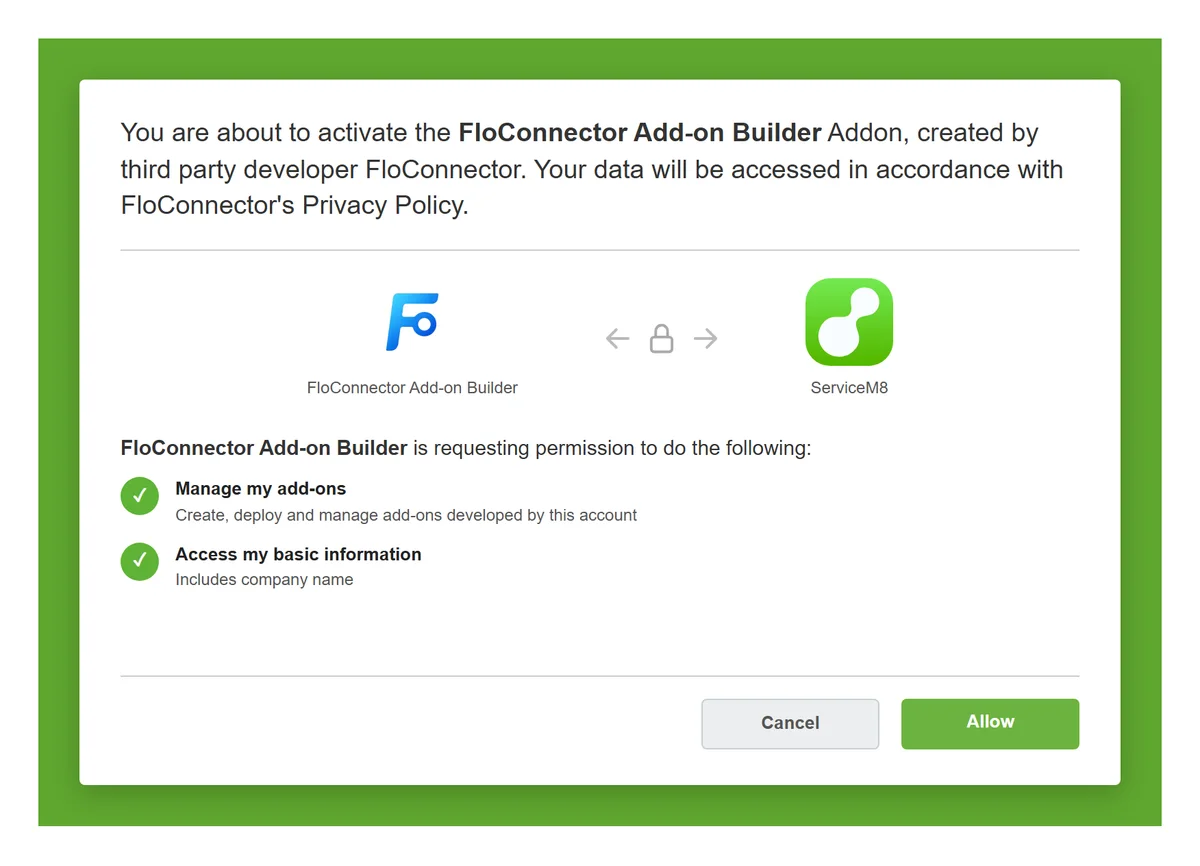
FloConnector is the check in between:
- Permissions come from a reviewed list. An add-on can only ask for what’s on it, and some things aren’t on it at all, including sending emails and SMS, staff locations and managing staff.
- You see everything before it goes live. The review lists where it appears and what it can do, every time.
- It deploys only after you say go. The deploy tool refuses unless your AI confirms you approved this draft, and every deploy records who did it.
- It only touches its own add-ons. Everything it builds has a name starting
flc-. It can see the other add-ons in your account, but it can’t change them, and it never deletes anything. - Keys never pass through the chat. If an add-on needs a Slack token, your AI makes a one-time link, you paste the value on a FloConnector page, and it goes straight to ServiceM8. The link works once and expires after 30 minutes.
- Switching off takes about 30 seconds, and keeps the draft, so turning it back on is one deploy.
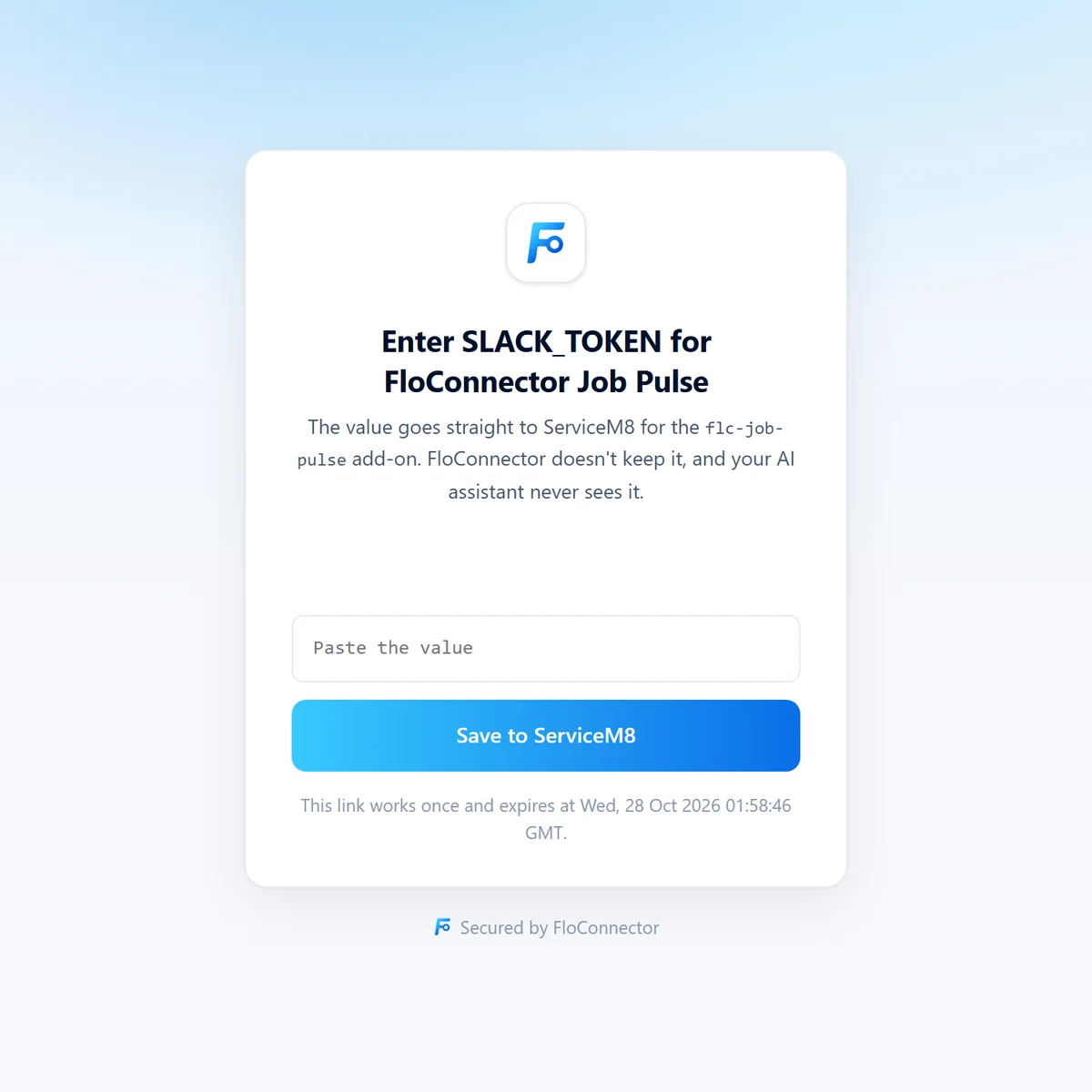
One more habit worth keeping: try new add-ons on a test account first. A deployed add-on is live for everyone in the account straight away.
What add-ons can’t do
Add-ons add things to ServiceM8. They can’t change how ServiceM8’s own screens work, and they only run when something triggers them.
- They can’t show one person a different ServiceM8. Data Curtain can’t hide a diary item from one staff member while showing it to another in ServiceM8’s own diary. It moves the file out of the diary for everyone and shows it behind its own button to the roles you choose. That keeps the diary tidy, but it isn’t a lock: the file is visible for the 17 seconds or so before the add-on gets to it, a phone that already synced it may keep a copy, and anything with access to your ServiceM8 data can still read it.
- They only run when something happens. Someone clicks a button, opens a page, or a field the add-on watches changes. There’s no “every morning at 8”.
- They react to changes, not events. That covers more than it sounds like: completing a job changes its status and completion date, so “when a job is completed” is a change an add-on can watch.
- They’re one file. Built from what Node already includes, with no packages. Node 24 can make web requests on its own, so talking to another service still works.
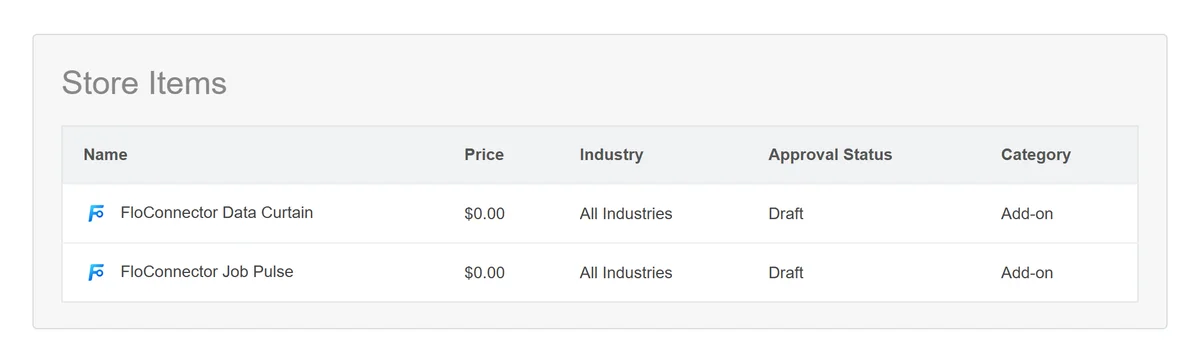
When an add-on is finished with, your AI switches it off. Removing it entirely is yours to do, in ServiceM8 under Account, Developer, Store Items:
ServiceM8 add-on ideas to start with
A few we’ve built or seen asked for. Paste one in and change the details:
A Job pulse button on the job that shows the job's status, client, address and description in one popup. Web and app.

When a job's status changes, add a line to the job diary saying what it changed from and to, and who changed it.

A Job brief button: invoice total, paid and balance, hours logged against hours scheduled for each person, the last emails and texts with the customer, and anything that looks wrong.

A Duplicate job button and an Add-ons page where I type a job number: show a preview, let me choose whether to copy contacts, billing lines and badges, then make the copy and give me a link to it.

An Add-ons page that lists this week's completed jobs with their invoice totals and who did them.
If the ServiceM8 connector is on the same profile, your AI can look through your real jobs with its 188 tools while it designs the add-on, then build it with the Builder’s 11.
Get started
- In FloConnector, open Connectors, choose ServiceM8 Add-on Builder and click Connect. Approve it in ServiceM8.
- Add it to the profile your AI uses, next to the ServiceM8 connector if you have it.
- Ask for an add-on.
It’s free on every plan. Building one takes a handful of tool calls, and once it’s live, its own requests go from ServiceM8 to ServiceM8, up to 180 a minute and 20,000 a day per add-on, and never through FloConnector.
The Builder is in beta. It has been tested end to end on a fresh ServiceM8 account, in Claude and in ChatGPT, and it will improve quickly as real add-ons get built with it. The help pages cover every step, every permission and the fixes for common problems.
Keep reading
More from the blog
Tables: give Claude a database, not just a memory
Claude's memory carries the context of your past chats. It was never built to keep records. Tables are structured records your AI creates, fills from the tools you already use and reads back in any chat after, with typed fields, a key that stops duplicates, and every row editable in your dashboard.
Pylon + AI: 25 tools, and the signed quote stops being retyped
Pylon runs on a connector we build and maintain ourselves, with 25 tools across projects, designs, quotes, hardware prices, materials and STCs. The quote a customer signs can now be read line by line, priced off your own catalogue, and checked against what the proposal actually said.
Xero MCP: 133 tools, and month-end is something you can ask for
Our Xero connector went from 53 tools to 133. It can now send the invoice, hand you the link your customer pays from, put an overpayment against the next invoice, record a twelve-invoice remittance as one payment, and read the reports your accountant opens. Here's what you can ask for now.